Import and Export
There are several kinds of motivations for exporting and importing your jvmguard configuration:
- Backup: Backing up your jvmguard server configuration from time to time is a good idea. The configuration contains a lot of knowledge about your transactions and their expected behavior. It is a valuable piece of data that could be stored in a version control system.
- Staging: If you have a staging environment where you try out changes in the jvmguard configuration before deploying them to a production server, you need a way to transport the configuration from one jvmguard installation to another.
- Unattended deployment: If you deploy your jvmguard server to a remote machine, you can use the unattended installation mode of jvmguard and install it on a server instance where no jvmguard server has been installed yet. In that case you have to put the exported configuration next to the installer.
Server configuration
Section titled “Server configuration”If you are an administrator, you can go to the general settings and select the “Export/Import” tab. The entire configuration is exported to a JSON file. When you import that file, the entire server configuration is replaced. The change does not happen until you click on Apply Settings. It is not possible to delete the current user that way.
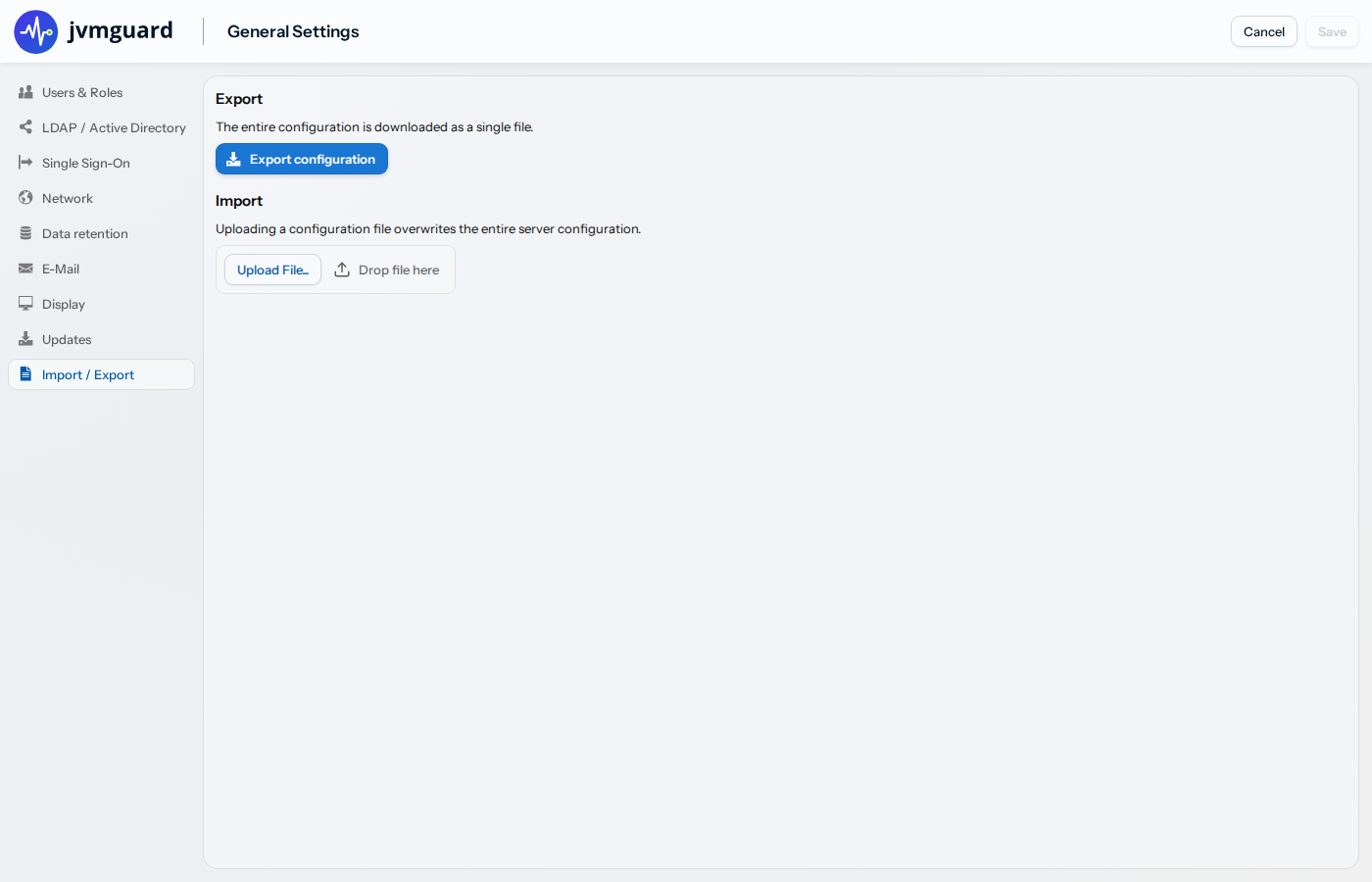
The JSON file format is versioned, a more recent jvmguard server can read the exported file of an older version.
Naming that file jvmguard_server_config.json and copying it to the jvmguard data directory overwrites the entire
configuration at startup. This mechanism is used by the unattended
installation. After the import, the file is deleted automatically.
Recording configuration
Section titled “Recording configuration”The exported JSON file with the entire configuration contains user data. This may not be what you want for staging or also for backup purposes. In the recording settings, you can also export selected VM group configurations. Here, you can select “All VMs” or a particular VM group and click on the export button on the right.
This export is not only available for administrators, but also for users with “profiler” access rights.
Naming this file jvmguard_recording_config.json and copying it to the jvmguard data directory overwrites the entire
recording configuration at startup. The file is deleted automatically after the import has been completed.