Single sign-on
Single sign-on (SSO) lets users sign in to jvmguard through an external identity provider instead of entering a user name and password. jvmguard supports any OpenID Connect (OIDC) compatible provider, with presets for the most common ones. SSO runs alongside the existing local and LDAP authentication, so all three methods can be active at the same time.
When SSO is enabled, the login page shows an additional button for each configured provider. The user clicks the button, authenticates at the identity provider, and is redirected back to jvmguard. If the user is authorized, jvmguard creates a session with the assigned access level.
SSO client IDs and secrets can be overridden through environment variables, see server configuration.
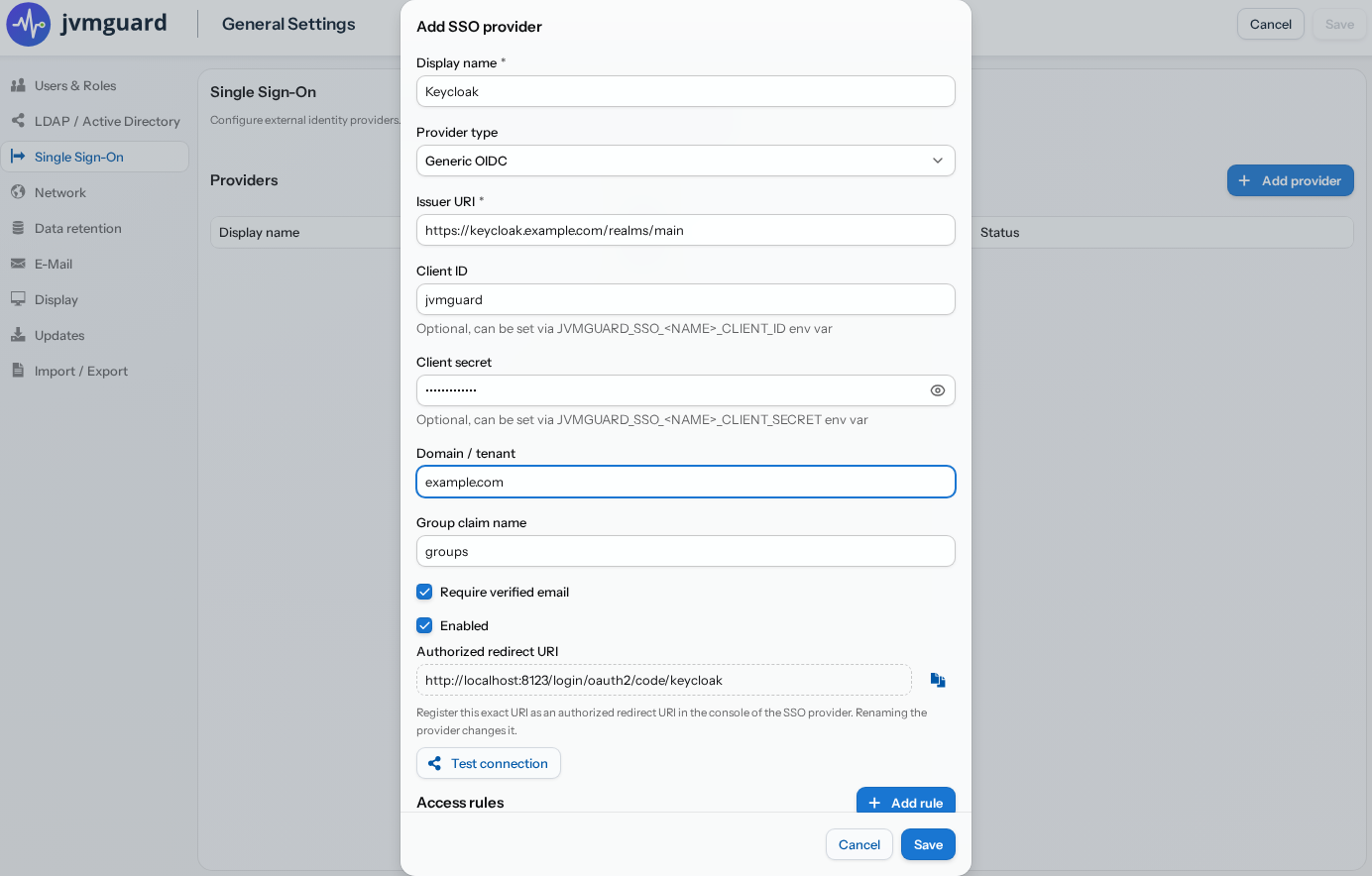
Redirect URIs
Section titled “Redirect URIs”Each SSO provider requires a redirect URI to be registered in the identity provider application settings. The redirect URI has the form:
http://<jvmguard-host>:<port>/login/oauth2/code/<slug>where <slug> is the display name of the provider converted to lowercase with non-alphanumeric characters
replaced by hyphens. For example, a provider named “Keycloak” has the redirect URI
http://localhost:8020/login/oauth2/code/keycloak.
In addition, the logout redirect URI http://<jvmguard-host>:<port>/login must be registered so jvmguard
can redirect users back to the login page after they sign out at the identity provider. Some identity
providers call this the “post logout redirect URI” or the “allowed logout URL”. If this URI is not
registered, the identity provider will show an error when the user logs out.
Access rules
Section titled “Access rules”Access rules determine which users can sign in via an SSO provider and what access level they receive. An empty access rules list means that only pre-created users can sign in. This is the default and the most restrictive mode.
You can add rules that match group or role claims from the identity provider token. Each rule maps a claim
value to an access level. A special catch-all rule, displayed as *, matches any user in the configured
domain who does not match a more specific rule. Only one catch-all rule is allowed per provider.
The following scenarios illustrate how access rules work:
- No rules: Only users you have pre-created in jvmguard can sign in. Their access level is taken from the user definition.
- Specific group rules: Users whose token contains the matching group claim value are auto-created with the assigned access level. Users without a matching group are denied, unless a catch-all rule is also configured.
- Catch-all only: Anyone who can authenticate at the identity provider and passes the domain restriction is auto-created with the access level assigned to the catch-all rule.
- Specific rules plus catch-all: Users matching a specific group rule get the higher access level from that rule. All other users get the access level from the catch-all rule.
Google Workspace does not expose group claims via OpenID Connect. For Google providers, access rules are limited to a catch-all rule that applies to everyone in the configured domain.
User management
Section titled “User management”SSO users can be created in two ways:
Pre-created users: In “Users and Roles”, create a user with the type “SSO” and enter the user’s email address at the identity provider. The access level is assigned by you. When the user signs in for the first time, jvmguard matches the email address and associates the subject identifier of the identity provider to the user entry.
Auto-created users: When an access rule matches and no pre-created user exists, jvmguard creates a new user entry with the access level from the matching rule. The user’s full name is populated from the identity provider token if available.
Once a user has been created, either manually or automatically, you can change the access level in “Users and Roles” at any time. The change takes effect at the next login.
Coexistence with local and LDAP authentication
Section titled “Coexistence with local and LDAP authentication”SSO does not replace local or LDAP authentication. All three methods can be active simultaneously. Each user has a single user type: “Local”, “LDAP”, or “SSO”. The user type determines how the user authenticates.
A user created as “Local” or “LDAP” will not be able to sign in via an SSO button, even if the same email address is used at the identity provider. Conversely, an “SSO” user cannot sign in with a password, because no password is stored for that user type.
If you want to migrate a user from one authentication method to another, change the user type in “Users and Roles”. Note that existing users who are currently logged in cannot be deleted.